Restore Old Photos / Remove dust from photos
Remove Dust From Photos Online: Clean Specks and Spots From Old Scans With AI
Get clean, spotless copies of your old photos in about a minute: dust, specks and spots gone, every face kept as it was.
Remove dust from photos online by uploading an old photo scan and letting AI clear the dust specks and spots while keeping the same faces. Dust removal is the digital cleanup of specks, lint, hairs, and smudges that a scan picks up from the print or the scanner glass. Negatives, slides, glossy album prints, and phone photos of framed prints can show white dots, fibers, hair-like marks, glass dust, and fingerprints. Online dust removal starts with uploading the scan, running automatic cleanup, and checking the before-and-after result, while the AI separates isolated marks from image detail and rebuilds the surrounding texture. Restore Old Photos removes dust and repairs scratches in one pass, so use the Remove Dust From Old Photos Online action to begin.
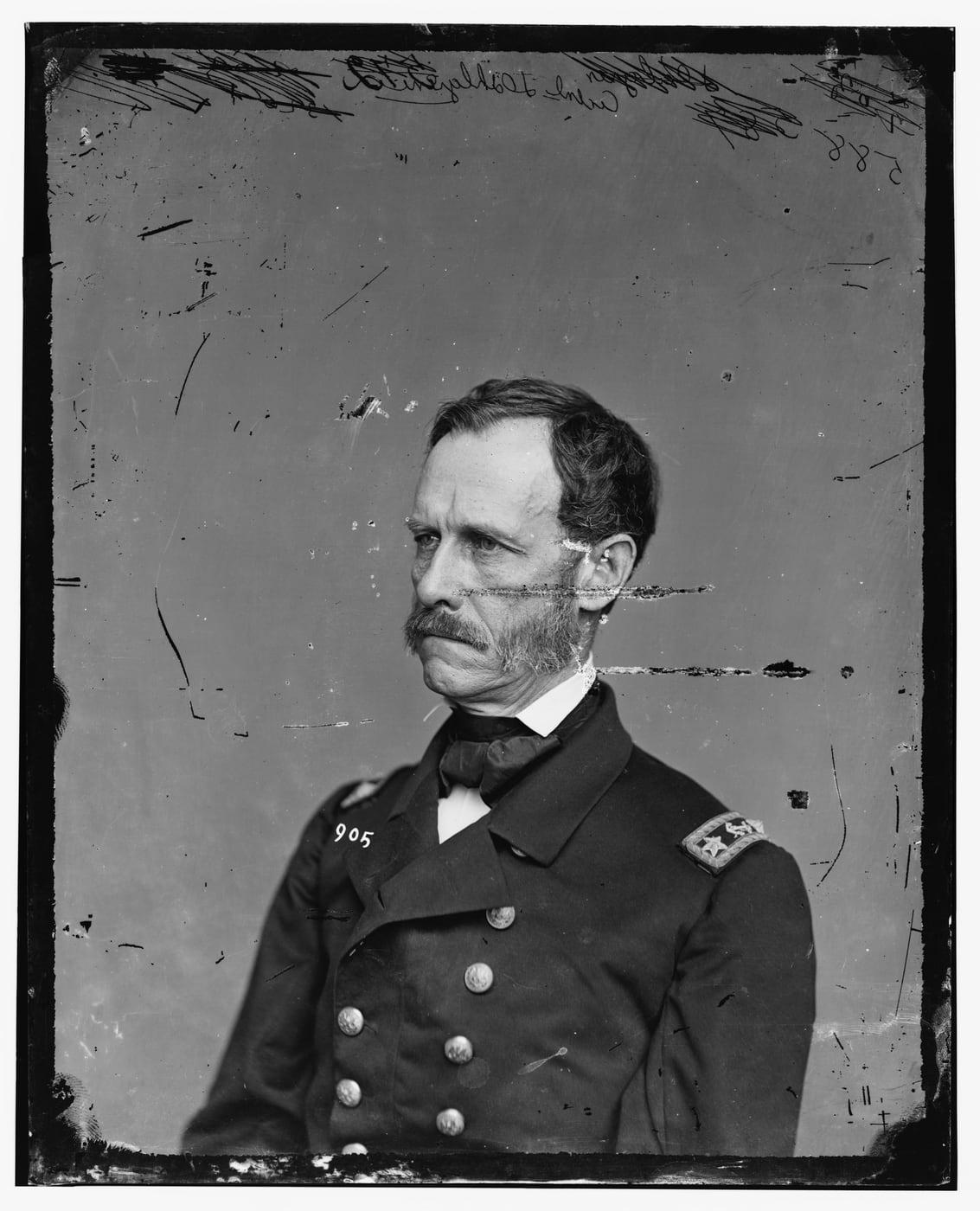
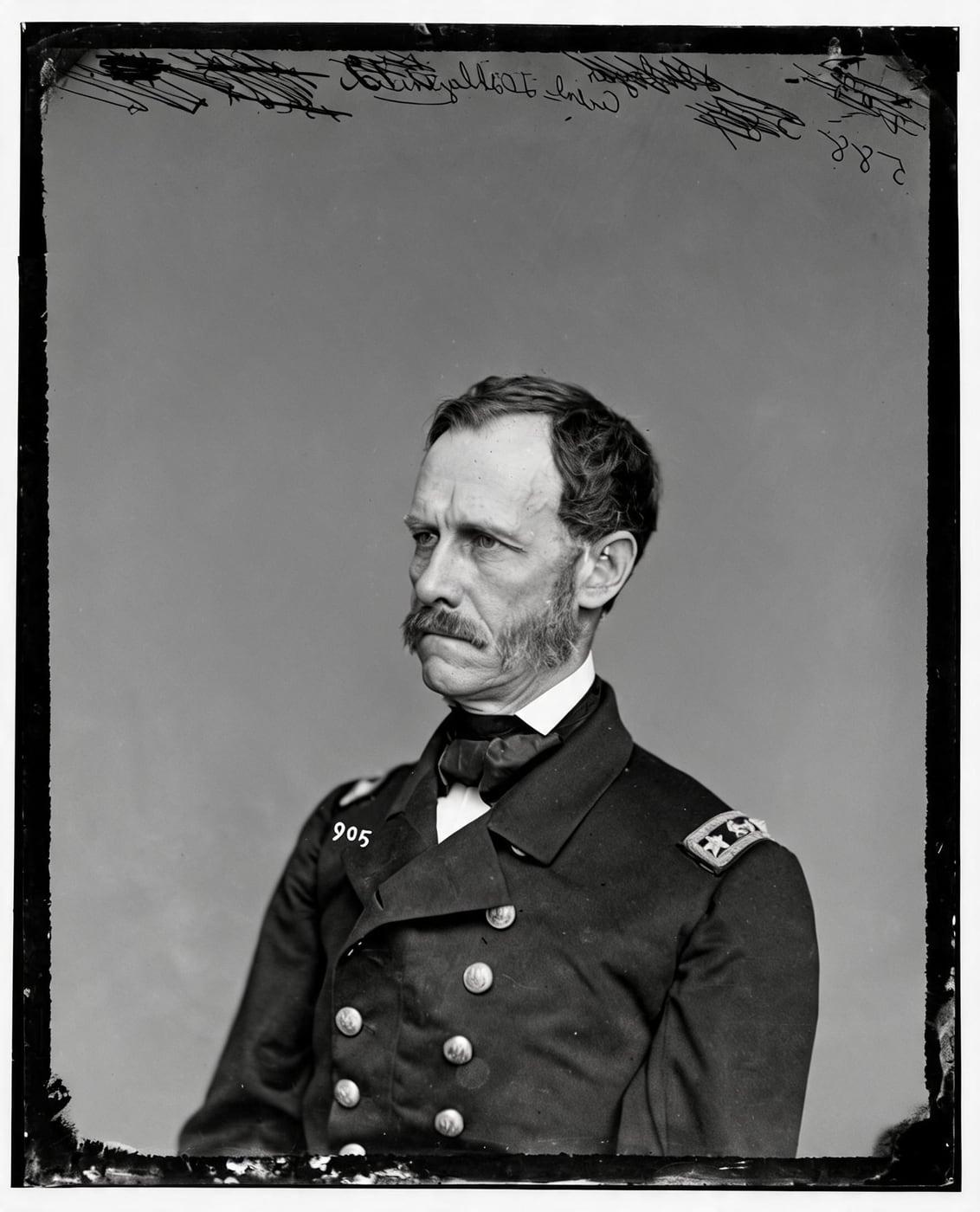
Dust Removal Before and After
Drag the handle to compare. The example is an 1860s glass-plate portrait covered in specks, spots and scratches. They're gone in the result, and the face, the uniform and its buttons are as they were.
A dust removal before and after shows the original scan beside its Restore Old Photos result, so readers can inspect the cleanup. The before-and-after slider moves across the same photo, showing where specks, lint, and hairs were cleared while the same faces stay in place.
Remove dust from old photos onlineRemove Dust From Old Photos Online With AI
Restore Old Photos removes visible dust specks, spots, and surface damage from an uploaded old photo scan with AI while preserving the faces and composition of the original. Review the cleaned photo, then download the restored image.
- per photo
- ≈ 1 min
- per photo
- per photo
- 1 credit
- per photo
- then your upload is deleted
- 24 h
- then your upload is deleted
Kinds of Dust Marks on Scanned Photos
The kinds of dust marks on scanned photos are small specks and white spots, lint and fibers, hair strands, scanner-glass particles, and fingerprint smudges, starting with the small specks that scatter across a dusty scan.
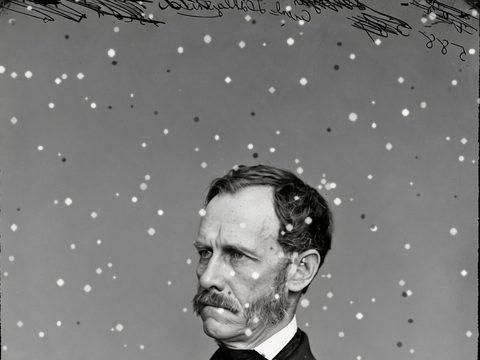
Fig. 3.1 · Illustration Dust Specks and White Spots
Dust specks and white spots appear on a scan as small, sharp white or dark dots scattered over faces, clothing, or plain backgrounds. Restore Old Photos detects each isolated mark and repairs it with matching surrounding detail while preserving faces and image structure.

Fig. 3.2 · Illustration Lint and Fibers
Lint and fibers appear on a scan as thin, irregular lines or fuzzy strands across the photo. AI dust removal detects the fiber artifacts and reconstructs the interrupted image texture while preserving faces and important details.
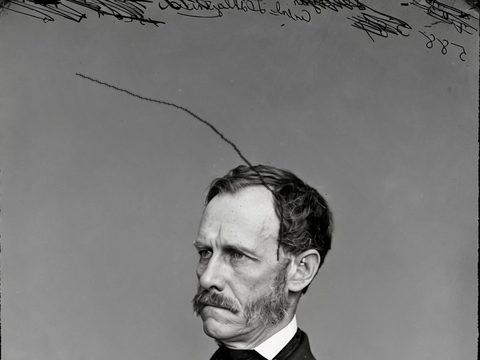
Fig. 3.3 · Illustration Hair Strands
Hair strands appear on a scan as thin, dark or light lines crossing the photo, usually from loose hair on the print or the scanner glass. Restore Old Photos detects the stray lines and reconstructs nearby texture while preserving faces and genuine fine detail.

Fig. 3.4 · Illustration Dust Trapped on the Scanner Glass
Dust trapped on the scanner glass appears on a scan as small, sharp spots, pale blobs, or repeated marks in the same position across multiple scans. Restore Old Photos removes the scan-surface marks while preserving nearby faces, edges, and other image detail.
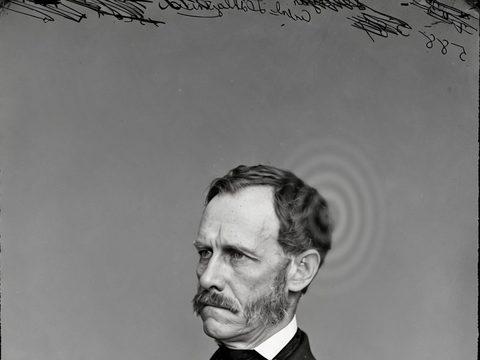
Fig. 3.5 · Illustration Fingerprint Smudges
Fingerprint smudges appear on a scan as cloudy, greasy patches or faint curved marks left by oils and salts transferred from skin. AI dust removal can reduce visible smears and reconstruct nearby texture, but chemical damage such as bleaching or silver mirroring, which oils and dirt from fingerprints can cause on the print, needs conservation care, as the Northeast Document Conservation Center notes in “5.3 Care of Photographs” (revised 2019).
Scans That Collect the Most Dust
The scans that collect the most dust are film negatives and slides, glossy prints stored in albums, and phone photos of framed prints, which pick up dust, fibers, fingerprints, or glass debris.
Scanned Negatives and Slides
Scanned negatives and slides collect dust because particles settle on the film, the holders, or the scanner glass, and scan enlargement makes every particle conspicuous. The Los Angeles Public Library's Memory Lab guide “Scan Slides or Negatives” advises cleaning negatives gently with an air puffer and keeping the scanner glass free of dust before capture, and Restore Old Photos removes the dust marks that remain and reconstructs nearby image detail.
Glossy Prints From Old Albums
Glossy prints from old albums collect dust on exposed surfaces, while album sleeves and pages can shed fibers or trap debris against the image. Restore Old Photos removes visible specks, fibers, and smudges from the uploaded scan while reconstructing nearby image detail.
Phone Photos of Framed Prints
Phone photos of framed prints collect dust from particles on the frame glass, the print surface, or the camera lens, while reflections on the glass can create bright patches. Restore Old Photos uses AI to remove the surface marks while preserving faces and image detail.
How to Remove Dust From a Photo Online
To remove dust from a photo online, follow five steps: wipe the scanner glass, upload the scan, run automatic speck removal, inspect the result at full zoom, and download the cleaned photo.
Step 1 of 5
Wipe the Scanner Glass Before Scanning
Wipe the scanner glass before scanning an old photo with a soft, lint-free cloth lightly moistened with glass cleaner, then dry the glass until streak-free. Never spray cleaner directly onto the scanner; a scan from clean glass is ready to upload for online dust removal.
Remove dust from old photos onlineFig. 1 · The photo you add Step 2 of 5
Upload the Dusty Scan
Upload the dusty scan to Restore Old Photos by selecting the file from your device or dragging it into the upload area. Restore Old Photos accepts JPEG, PNG, and WebP files, one photo per upload.
Step 3 of 5
Run Automatic Speck Removal
Select Restore to let the AI detect and repair dust specks, hairs, and fine scratches while preserving the surrounding image detail. Open the result for a close inspection of faces and other fine details.
Step 4 of 5
Check Fine Detail at Full Zoom
Move the before-and-after slider at full zoom across faces, hair, clothing, text, and repaired spots. Confirm that the dust has disappeared without smearing fine detail, changing facial features, or adding artificial texture.
Step 5 of 5
Download the Clean Photo
After checking the restored image, click Download to save the clean photo, about 2K (2048 px on its long side), without a watermark.
Remove dust from old photos online Same people · checkedFig. 5 · Restored
Benefits of AI Dust Removal for Old Photos
The benefits of AI dust removal for old photos are cleaner scanned prints without manual spot-by-spot editing and a photo-by-photo album restoration that stays easy to manage.
Cleaning a Whole Scanned Album Photo by Photo
Restore Old Photos cleans a whole scanned album photo by photo, with one photo per upload and about a minute of processing for each photo. A bigger credit pack or the monthly plan covers the larger photo count of a full album.
One Credit per Cleaned Photo
Each photo cleaned by Restore Old Photos costs 1 credit from a credit pack or monthly plan. A result that fails the same-faces check is remade once and, if it fails again, the credit is refunded, so a failed result never costs a credit.
How Restore Old Photos Removes Dust and Repairs Scratches in One Pass
Restore Old Photos removes dust and repairs scratches, tears, stains, creases, and fading in one pass of the Restore tool. Each Restore run makes a faithful version and can add a bolder version, at 1 credit per version. Colour can be added in the same pass without spending an extra credit.
Dust Removal Pricing
1 credit restores one photo, and a second, bolder version is 1 more. Packs start at $2.99, never renew, and their credits never expire.
Pack 01
Starter
A few favourite photos, restored and colorized.
$2.99one-time
60¢ a photo
- 5 photos restored, colorized or enhanced
- Or 1 animated clip
- Full size, no watermark
- Credits never expire
- Never renews
Most chosen
Pack 02
Family
An album's best photos, with a clip of the one you love most.
$7.99one-time
44¢ a photo
- 18 photos restored, colorized or enhanced
- Or 4 animated clips
- Full size, no watermark
- Credits never expire
- Never renews
Pack 03
Archive
For the shoebox in the attic and the family historian.
$19.99one-time
40¢ a photo
- 50 photos restored, colorized or enhanced
- Or 12 animated clips
- Full size, no watermark
- Credits never expire
- Never renews
One-time payments in US dollars. Compare credit packs and monthly plans
Dust Removal FAQ
Is Dust Damage Permanent on Old Photos?
No, dust damage is not permanent on old photos, because AI can remove loose dust from an old photo scan, but embedded stains or mold that only look like dust may require separate repair.
- Mold Spots That Look Like Dust: Mold spots on old prints look fuzzy, irregular, or embedded in the image surface, while dust sits loose on top. Active mold that infests photographic materials is usually impossible to remove without damaging the photograph, according to the Library of Congress leaflet “Care, Handling, and Storage of Photographs” (revised 2002), so isolate affected photographs and consult a conservator instead of treating mold as ordinary dust.
What causes white spots on old photos?
On a scan, mostly dust on the print or the scanner glass. On the print itself, white spots can be flaking emulsion or places where the surface was scratched away. Both are repaired in the copy.
Can I remove dust from a scanned slide or negative?
Yes, once it's scanned as a positive picture rather than the negative itself. Upload the scan and its dust, hairs and spots are cleaned off just as on a print.
Will the people still look like themselves?
That is the one thing Restore Old Photos checks on every result. Each one gets a structure score against your original and an AI check that the same people are there, with nothing added or removed. A result that fails is remade once on a backup model; if it still fails, it's dropped and the credit comes back to you.
Does a Dust-Free Scan Keep All the Original Detail?
Yes, a dust-free scan keeps the genuine facial features, edges, and texture of the original when dust removal is careful, but strong correction may soften fine detail or mistake small features for dust. Keep the untouched scan and inspect the cleaned image at full zoom when removing dust from old photo scans online.
Can AI Fix Scratches Along With the Dust?
Yes, AI can fix scratches along with the dust: Restore Old Photos repairs fine scratches on old prints in the same cleanup as the dust.
- Removing Fine Scratches Left on Old Prints: Restore Old Photos removes fine scratches left on old prints during the same repair that clears the dust. The Restore tool reconstructs damaged lines from nearby image texture while preserving faces and surrounding details.
How Can You Stop Dust Before Scanning?
To stop dust before scanning, clean the scanner glass and the print, choose a scanner with dust correction, handle prints with clean, dry hands or nitrile gloves instead of cotton gloves, and keep phone scans free of airborne debris.
- Choosing a Scanner With Dust Correction: A scanner with dust correction detects and digitally removes dust and scratch marks during scanning, which suits supported color negatives and slides in particular. Digital ICE Technologies remove many surface defects from film and prints, according to the Epson product page “Epson Perfection V850 Pro Photo Scanner” published by Epson America, while compatibility varies by scanner.
- Scanning With a Phone Without Adding Dust: To scan a print with a phone without adding dust, use a phone-scanning app in a clean, dust-free area, with the print flat and the phone held directly above it, parallel to its surface, as Boston University Libraries recommend in “DIY Digitization Tips”. Turn off the flash, use soft even light, handle the print by its edges, and gently remove loose dust before scanning.
- Handling Prints With Cotton Gloves: Handling prints with cotton gloves is riskier than handling them with clean, dry hands or nitrile gloves, because cotton reduces dexterity and can leave lint fibers and dirt on the photograph. The National Archives (UK) guidance “Handling photographic materials” states that loose photographic prints should be held by their edges while wearing nitrile or vinyl gloves.
What does Restore Old Photos do with the photos I upload?
The original is used only to make your results and is deleted from our servers within 24 hours by an hourly clean-up, or at once if you delete it. Your results stay in your account until you delete them. Before upload, your browser shrinks the photo and strips its location data.
Does Restore Old Photos use my photos to train AI?
No. Restore Old Photos never uses your photos or results to train AI models. They're sent only to the AI providers that restore and check them, whose terms allow them to use what we send only to do that job.
Does Restore Old Photos have a free trial?
No, and so there's no trial to cancel and no weekly plan. You pay per photo with a one-time pack, from $2.99 (from 40¢ a photo), and a result that fails the check never costs a credit: it's dropped and the credit comes back.
What if a result fails?
You don't pay for it. Anything that isn't delivered, including a result held back because it failed our likeness check, is refunded to your balance automatically.
More Ways to Repair Old Photos
Remove dust from photos
A clean scan, with every detail still there
Remove dust from old photos online